The practical answer. Use a Specific people link for a folder intended for a particular client. Grant only the necessary permissions, check existing access and have the recipient test the link. Remove unnecessary permissions when the engagement ends.

Choose the link deliberately
| Link type | Who gains access | Suitable use |
|---|---|---|
| Specific people | Named recipients who authenticate | A folder restricted to the client. |
| People in your organisation | Internal members who hold the link | Internal sharing, not an external client. |
| Anyone | Whoever holds the link | Content you accept may be forwarded more widely. |
Forwarding a Specific people link does not grant access to another person. An Anyone link may circulate without authentication. Microsoft explains these link types. A People with existing access link creates no new permission, so it cannot by itself invite a new client.
Send the folder link
Select the folder in SharePoint and choose Share. Open link settings, select Specific people, enter the client's address and choose Can view when reading is sufficient. Apply the settings and send the link. Labels and options depend on your configuration; follow Microsoft's sharing steps.
Tell the recipient which email address was invited. An invitation to a work address does not authorise their personal Microsoft account. Ask them to use the intended account rather than broadening the link just to get past an error.
Limit the scope as well as the link
Share the required folder, not the parent containing other clients' documents. Review Manage access, including direct access, groups and inherited permissions. A newly restricted link does not cancel older access routes.
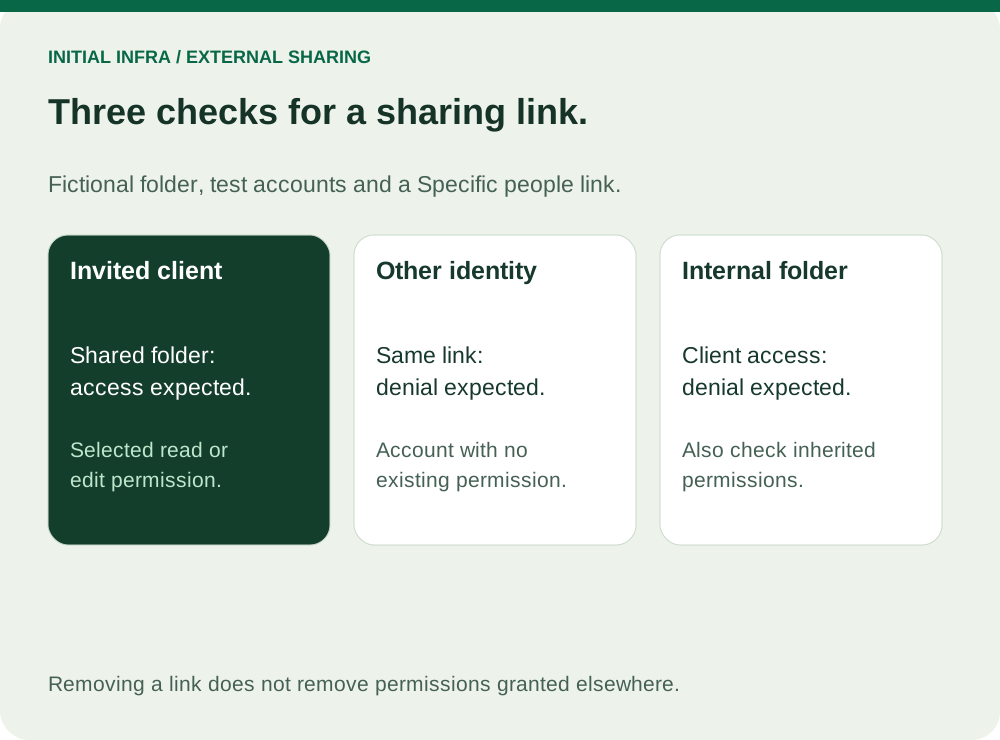
Read the diagram as text
INITIAL INFRA / EXTERNAL SHARING Three checks for a sharing link. Fictional folder, test accounts and a Specific people link. Invited client Shared folder: access expected. Selected read or edit permission. Other identity Same link: denial expected. Account with no existing permission. Internal folder Client access: denial expected. Also check inherited permissions. Removing a link does not remove permissions granted elsewhere.
Use a separate exchange space when different audiences need different content. Name its owner and the date or event that triggers an access review, such as project acceptance. Add only the required documents, then test a neighbouring internal folder as a negative control.
View or edit?
Give edit rights only when the client must change the shared content. For incoming files, agree where they should be uploaded and who checks them before they join your internal records. Available download-blocking options vary; they are not a guarantee against all copying. See the sharing documentation.
If the link fails
Advice for your situation
Does your client see Access denied?
Start with identity, then permissions and restrictions. This guide makes no changes to your account.
Guidance only. No access to your files and no data sent.
Check the invited address and the signed-in account, then have the administrator inspect external-sharing restrictions. Do not change the link to Anyone simply to bypass a refusal.
Use fictional test documents with the invited external account and another test account with no prior permission. The invited account should open the folder; the other should be denied. A private window can help select the right account, but it does not replace permission testing.
If access still fails, provide the invited address, URL and error message to the administrator, without passwords or authentication codes. Microsoft's access-denied troubleshooting helps distinguish identity problems from policy restrictions.
Use this worksheet
Who can actually open this folder?
Use a fictional folder, an invited external account and a test account with no existing permission. Record roles, never passwords.
Complete the worksheet
Nothing is sent or saved automatically. Download your answers before leaving the page.
Closing a link does not remove other permissions or erase downloaded copies. Microsoft screens can vary with the configuration.
Close sharing properly
In Manage access, remove obsolete links and direct grants. Inherited access must be addressed at the parent or group that provides it. Have the recipient verify the result. Microsoft's permission-management guidance describes the available controls. Revocation does not erase copies already downloaded.
Keep the authoritative documents in the team space with appropriate recovery protection. Review invitations and indirect accounts again during staff offboarding.
Scope client-file sharing with Initial Infra, identifying recipients, documents and required permissions.