The practical answer. Check the protection already enabled before buying extra Microsoft 365 backup. Add or strengthen it when the covered data, recovery history or restoration time does not meet your needs. Validate that decision through a restore, with an identified owner.
What is already protected?
Recycle bins and version history can recover some deleted or changed content. The result depends on the service, configuration and state of the data. For SharePoint, the standard recycle-bin lifecycle covers 93 days in total from the original deletion. Emptying the first-stage bin does not restart the clock. Retention policies can alter the journey; this figure is not a universal rule for email or deleted accounts. See Microsoft's resilience documentation.
A synchronised folder on a computer is not proof of an independent recovery copy: deletions and unwanted changes can propagate. Equally, an extra backup subscription is not proof that every site and mailbox is enrolled. Inspect the protection policy and its actual coverage.
Turn the need into a testable scenario
“Recover the folder on Friday as it stood on Monday” states a useful requirement. Specify the oldest recoverable state needed, acceptable loss of recent work and the deadline for usable service. A backup frequency and a retention period answer different questions.
Read the diagram as text
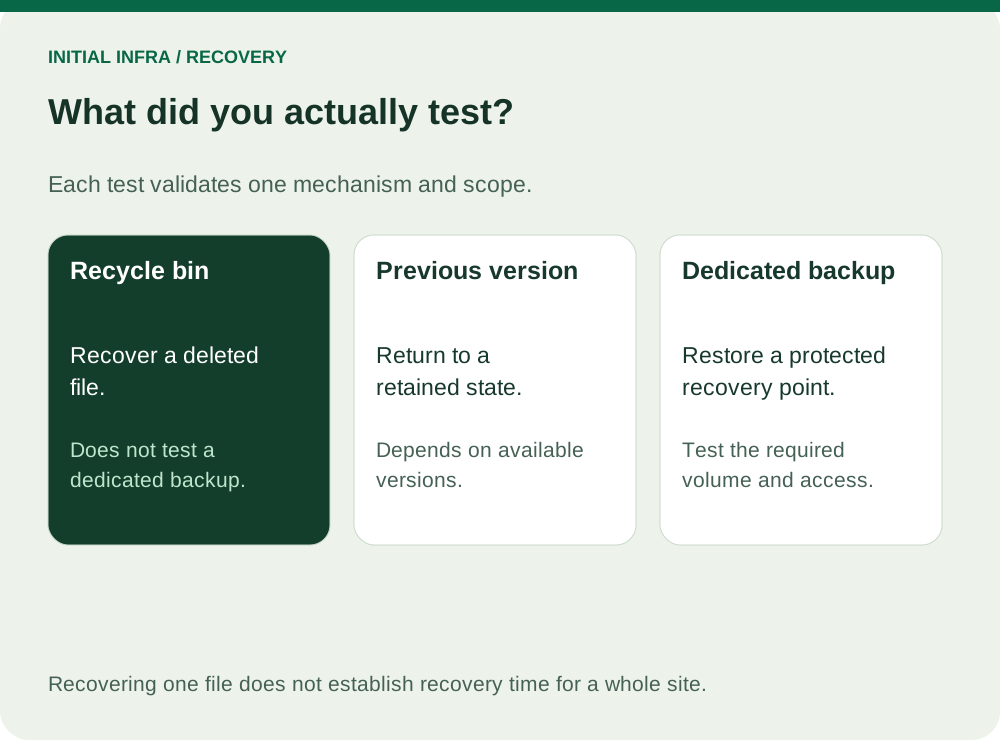
INITIAL INFRA / RECOVERY What did you actually test? Each test validates one mechanism and scope. Recycle bin Recover a deleted file. Does not test a dedicated backup. Previous version Return to a retained state. Depends on available versions. Dedicated backup Restore a protected recovery point. Test the required volume and access. Recovering one file does not establish recovery time for a whole site.
Also decide where recovery should land. Restoring over today's folder may replace legitimate edits made since the incident. An alternate location, where supported, lets the owner compare versions before deciding what to put back. Check the selected product's restore behaviour rather than assuming it offers file-level, folder-level and whole-site recovery in the same way.
Compare proposals by recovery behaviour
| Question | Evidence required |
|---|---|
| What is included? | Named mailboxes, OneDrive accounts, SharePoint sites and other supported objects. |
| Which point can we recover? | Retention history, point frequency and actual available points. |
| What can be restored? | Individual content or complete spaces, with the supported destination and overwrite behaviour. |
| Who can delete the copies? | Administrative permissions and protection against deletion. |
| What does recovery cost? | Subscription basis, assistance, data recovery and exit charges. |
Microsoft 365 Backup is a dedicated offering among possible solutions. It is not automatically enabled merely because you use Microsoft 365. A staff departure also needs a separate data-handover and account-closure procedure.
Test SharePoint recovery without client documents
Advice for your situation
What problem do you have in SharePoint?
Choose what you observe. This guide covers SharePoint files, not mailboxes or deleted accounts.
Guidance only. No access to your files and no data sent.
- Create
RESTORE-test.docxin an authorised test folder, enter a known sentence and record the location. - Delete only that test file. In SharePoint, open Recycle bin, select it and choose Restore.
- Reopen the file at its original location. Check its text and who can access it.
- Record the time taken and the person who restored it. Test an older version separately if that matters.
If the file is absent from the first bin, ask the administrator to check the second-stage bin. Follow Microsoft's recovery instructions.
This validates recycle-bin recovery, not a dedicated backup. Test that separately from a protected point, using the product's restore process. A successful single-file test does not establish the recovery time of an entire site.
Use this worksheet
Evidence of test-file recovery
Identify the tested mechanism: recycle bin, version history or dedicated backup. Use test data and an authorised operator. Keep the three protections distinct.
Complete the worksheet
Nothing is sent or saved automatically. Download your answers before leaving the page.
A recycle-bin recovery does not test a dedicated backup. One restored file does not validate whole-site recovery.
For the next acceptance step, choose a representative folder with permissions, an older version and an external sharing case. Validate the recovered content with its owner. Do not assume restored files automatically prove restored sharing or all business dependencies. Record what was tested and what remains outside the evidence.
These checks complement NAS versus SharePoint and the business restore-test guide. Bring your contract, used services and a concrete recovery scenario to Initial Infra before selecting additional protection.